Unlocking the Bootloader
Warning
This guide is for MT6761 (Helio A22) devices only. If you have an MT8766 processor, see the MT8766 disclaimer before proceeding.
Overview
Unlocking the bootloader enables advanced modifications including custom recovery, custom ROMs, and root access. The bootloader is a security checkpoint that verifies device software—unlocking it removes these restrictions.
What you’ll accomplish
Unlock your device’s bootloader for advanced modifications
Prepare for rooting, custom ROMs, and other modifications
Warning
Data Loss Risk: Unlocking the bootloader will factory reset your device, erasing all data.
This guide uses MTKClient, an open-source tool for MediaTek-based devices.
Prerequisites
MTKClient installed and working
Python 3.9 or newer
USB drivers for MediaTek devices
Quality USB data cable
Developer Options enabled with OEM unlocking (see below)
Enable Developer Options
Navigate to Settings → About Phone
Tap Build Number seven times
Go to System → Developer Options
Enable OEM unlocking
Enable USB debugging
Unlock Using MTKClient
Launch GUI:
python mtk_guiPower off device
Navigate to “Flashing” tab → Click “Unlock Bootloader”
Enter BROM mode:
Hold Owl/Heart button (top left) + Back button
While holding, plug in USB cable
Keep holding until device detected
Wait for completion, then reset device
Power off device completely
Run unlock and factory reset commands in MTKClient directory:
python mtk e metadata,userdata,md_udc
python mtk da seccfg unlock
Enter BROM mode:
Hold Owl/Heart button (top left) + Back button
While holding, plug in USB cable
Keep holding until device detected
Wait for completion (10-30 seconds)
Note: Some users need to reconnect USB multiple times. If stuck, disconnect and re-enter BROM mode.
Reboot device:
python mtk reset
Verification
After unlocking, you’ll see an Orange State warning on boot:
Orange State
Your device has been unlocked and can't be trusted
Your device will boot in 5 seconds
This is completely normal and confirms successful unlock. Some Google Play pre-installed devices may not show this message.
Post-Unlock: Create Backup
Create a complete backup before making any modifications. You’ll need about 5GB of free disk space:
Power off device
Launch GUI:
python mtk_guiEnter BROM mode (hold Owl/Heart + Back, plug USB)
Go to “Read partition(s)” tab
Click “Select all partitions”
Optionally uncheck “userdata” (encrypted personal data)
Enable “Dump GPT”
Click “Read Partition(s)” and choose save location
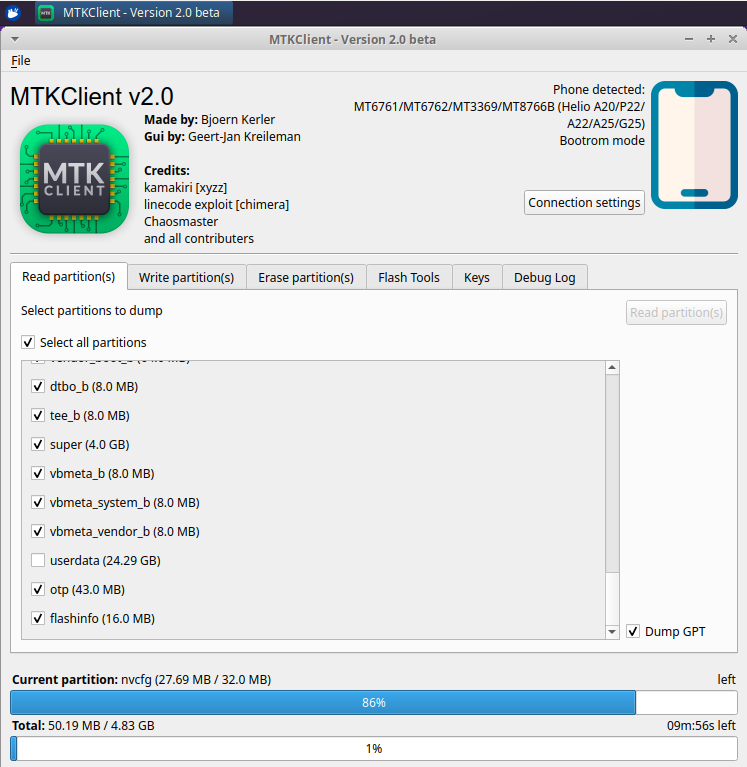
Back up preloader from “Flash Tools” tab
Power off device
Read all partitions in MTKClient directory:
python mtk rl backup --skip=userdata
To include userdata (encrypted personal data):
python mtk rl backup
Enter BROM mode:
Hold Owl/Heart button (top left) + Back button
While holding, plug in USB cable
Keep holding until device detected
Wait for backup to complete
Partitions will be saved to the
backupdirectory in your MTKClient folder.
Troubleshooting
Device Not Detected
If MTKClient shows “Waiting for PreLoader VCOM” indefinitely:
Ensure MediaTek USB drivers installed properly
Use quality data cable (not charging-only)
Try different USB ports (USB 3.0/3.1 often work better)
Verify button combination: Owl/Heart (top left) + Back
Confirm device fully powered off
Windows: Check Device Manager for MediaTek device
Try Preloader mode: plug USB without holding buttons
Process Freezes
Unplug USB, wait 5 seconds, reconnect in BROM mode
Multiple reconnection attempts may be needed
Don’t touch cable/device during process
Try USB 2.0 port instead of 3.0
Relocking the Bootloader
Danger
Only relock with completely stock, unmodified system partitions. Relocking with modifications will brick your device.
Restore to stock firmware
Verify all partitions unmodified
Power off device
Run:
python mtk da seccfg lockEnter BROM mode when prompted
Wait for completion and reboot